

Analyze Nginx logs with Elasticsearch and Kibana
21 Feb 2026
Introduction
Writing articles and tutorials on this blog is just a hobby. Still, I’m curious to understand which posts actually have an impact, and which ones don’t. That way I can focus my time on refining and polishing the topics people are most interested in.
And that’s where we step into the web analytics jungle. There are so many self-hosted tools out there. From a simple spreadsheet where you draw your own graphs, to full-blown platforms like Matomo or Umami.
Personally, I wanted a solution that fully respects my visitors’ privacy, which means:
- No embedded JavaScript whatsoever
- Relying exclusively on server logs to analyze traffic (Nginx in my case)
With that in mind, I decided to use the ELK stack (named after its original components: Elasticsearch / Logstash / Kibana) for a couple of reasons:
- It is a powerful tool, and worth learning a bit about (even if I’m not aiming to become an expert).
- I already use it to analyze other time series data.
I want to emphasize that I wouldn’t recommend this setup for production. There are much better tools for that specific purpose. However, knowing how to use ELK to extract insight from any time series data (logs, financial transactions, etc.) is a very valuable skill. For a more lightweight solution, I’d recommend looking into loki and grafana!
And I know myself: six years from now I will have forgotten all about this setup, so this tutorial will double as my own documentation 🙂
Let’s get started.
Installing Nginx + ELK
To make the setup as simple as possible, we will run all applications in docker containers. First let’s create a few files in the folder of your choice. In this example I’ll create a folder named elk-tuto.
mkdir elk-tuto
cd elk-tuto
touch docker-compose.yml
touch kibana.yml
touch elasticsearch.yml
mkdir html
cd html
touch article1.html
touch article2.html
docker-compose.yml
volumes:
  elasticsearch_data:

services:

  elasticsearch:
    image: docker.elastic.co/elasticsearch/elasticsearch:8.19.9
    environment:
      ES_JAVA_OPTS: "-Xmx256m -Xms256m"
      discovery.type: single-node
    volumes:
      - elasticsearch_data:/usr/share/elasticsearch/data
      - ./elasticsearch.yml:/usr/share/elasticsearch/config/elasticsearch.yml:ro

  kibana:
    image: docker.elastic.co/kibana/kibana:8.19.9
    volumes:
      - ./kibana.yml:/usr/share/kibana/config/kibana.yml:ro
    ports:
      - "5601:5601"

  nginx:
    image: nginx:1.29.5-alpine-slim
    ports:
      - "8080:80"
    volumes:
      - ./html:/usr/share/nginx/html
elasticsearch.yml
---

cluster.name: "docker-cluster"
network.host: 0.0.0.0
xpack.license.self_generated.type: basic
xpack.ml.enabled: false
xpack.security.enabled: false
kibana.yml
---

server.name: kibana
server.host: "0.0.0.0"
elasticsearch.hosts: [ "http://elasticsearch:9200" ]
article1.html
<!DOCTYPE html>
<html>
<head>
    <title>Article 1</title>
</head>
<body>
    <h1>Article 1 - what's the weather today</h1>
</body>
</html>
article2.html
<!DOCTYPE html>
<html>
<head>
    <title>Article 2</title>
</head>
<body>
    <h1>Article 2 - something cool</h1>
</body>
</html>
What we have is:
- An Elasticsearch container that will store the data parsed from nginx logs.
- A Kibana container that will be used to visualize this data.
- A Nginx container with 2 pages, ready to generate some logs that we will soon feed to elasticsearch.
Run docker compose up -d from the elk-tuto directory, and after a couple of minutes you should be able to open kibana at http://localhost:5601. If you see something like “Configure Elastic to get started”, wait a few more seconds until you see “Welcome home”.
Filebeat enters the chat
We are missing an important piece for this setup to actually start being useful. How do we get our nginx logs shipped into elk? That’s where Filebeat comes in handy.
The filebeat docker configuration documentation can be found via this link.
Let’s start by updating the docker-compose.yml file and creating the filebeat config. We’ll explain a couple of things right after.
docker-compose.yml
...
services:

  ...

  filebeat:
    image: docker.elastic.co/beats/filebeat:8.19.9
    user: root
    # We are overriding the command to set --strict.perms=false because
    # we are in development and we don't want to worry about file permissions.
    # In production, you should set the correct permissions instead.
    command: filebeat -e --strict.perms=false
    volumes:
      - /var/lib/docker/containers:/var/lib/docker/containers:ro
      - /var/run/docker.sock:/var/run/docker.sock:ro
      - ./filebeat.yml:/usr/share/filebeat/filebeat.yml:ro
filebeat.yml
filebeat.config:
  modules:
    path: '${path.config}/modules.d/*.yml'
    reload.enabled: false

filebeat.autodiscover:
  providers:
    - type: docker
      templates:
        - condition:
            contains:
              # If using a custom nginx image, you will want to update this line.
              # Example: registry.gitlab.com/user/my-website/my-nginx-website
              docker.container.image: nginx
          config:
            - module: nginx
              access:
                enabled: true
                input:
                  type: container
                  stream: stdout
                  paths:
                    # By default docker stores its data in /var/lib/docker.
                    # If you configured docker to use a different folder,
                    # you will have to adjust this path and the one below.
                    - '/var/lib/docker/containers/${data.docker.container.id}/*.log'
              error:
                enabled: true
                input:
                  type: container
                  stream: stderr
                  paths:
                    - '/var/lib/docker/containers/${data.docker.container.id}/*.log'

output.elasticsearch:
  hosts: 'elasticsearch:9200'
  pipeline: geoip-info
Do not run docker compose up -d yet as we will need to create the geoip processor first.
You will notice we mounted the /var/lib/docker/containers folder directly in the filebeat container. That’s where nginx logs are mapped on the host.
Before going further let’s verify those logs are indeed accessible. Tail the logs by running:
nginx_container_id=$(docker ps -q --no-trunc --filter "name=nginx-1") && sudo tail -f /var/lib/docker/containers/$nginx_container_id/$nginx_container_id-json.log
Then browse http:localhost:8080/article1.html to make sure new logs are showing up as we would expect.
Add the geoip processor
Something that I’m sure you would like to visualize in Kibana is where your visitors come from. For that purpose, we can use Filebeat along with the GeoIP Processor in Elasticsearch to export geographic location information based on IP addresses (relevant docs)
We can perform the pipeline creation operation from the Kibana console at http://localhost:5601/app/dev_tools#/console/shell.
PUT _ingest/pipeline/geoip-info
{
  "description": "Add geoip info",
  "processors": [
    {
      "geoip": {
        "field": "source.ip",
        "target_field": "source.geo",
        "ignore_missing": true
      }
    }
  ]
}
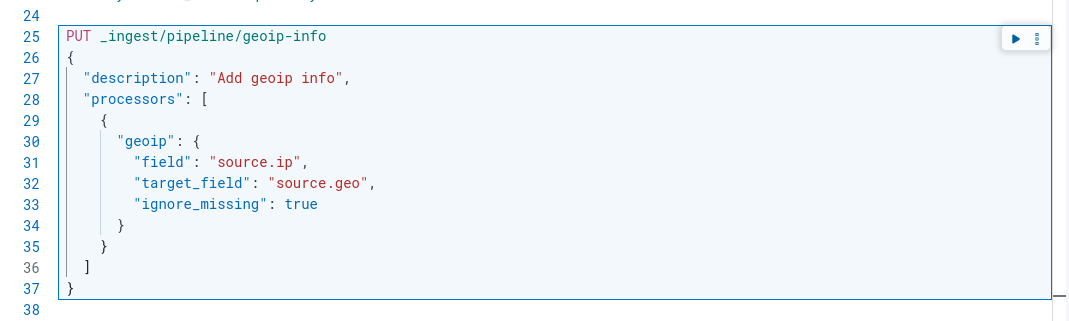
Click on the little arrow. If you see "acknowledged": true on the right panel, you are good to go.
Visualizing log data in Kibana
Everything is ready, it’s time to run docker compose up -d again to start Filebeat and get some logs shipped to elasticsearch.
Before opening Kibana, open and refresh pages at http://localhost:8080/article1.html and http://localhost:8080/article1.html to generate some logs.
Then open the Kibana Index Management page, and look at the Data Streams tab. You should see filebeat-8.19.9 created from our nginx container logs.
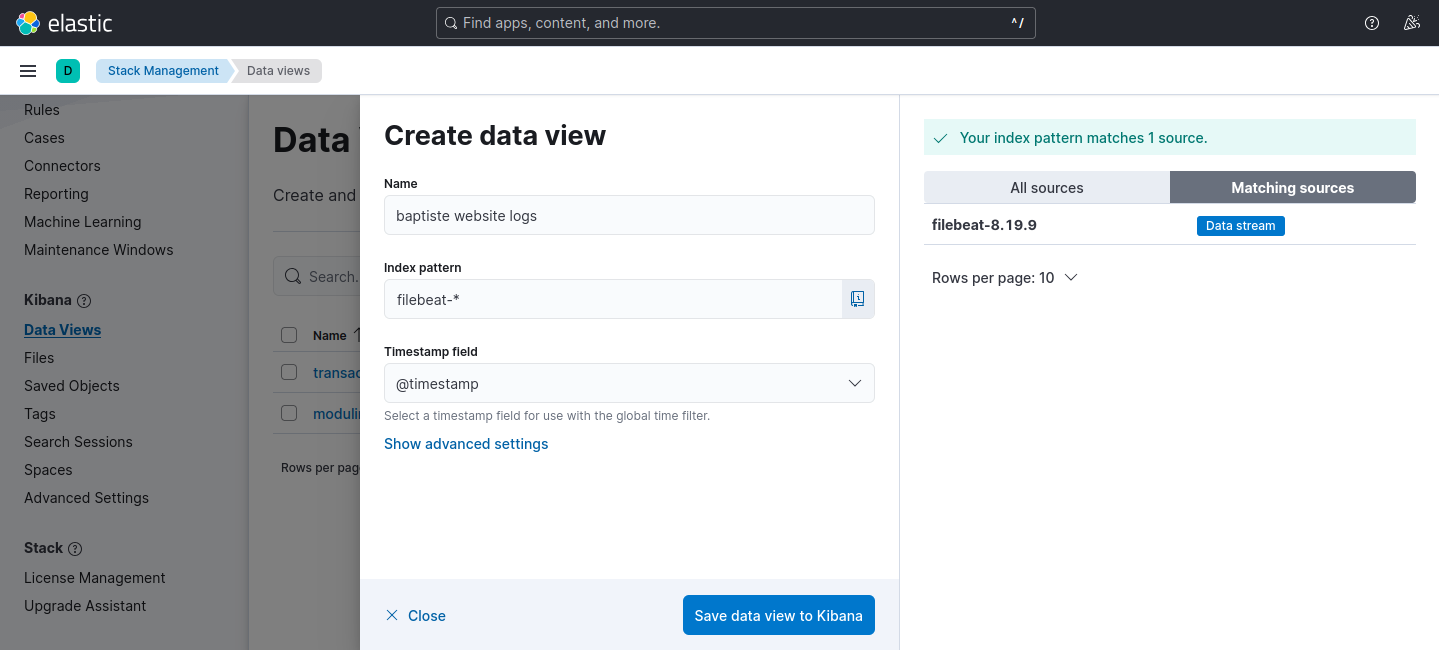
Now, let’s open the Kibana Data Views page and hit the Create data view button.
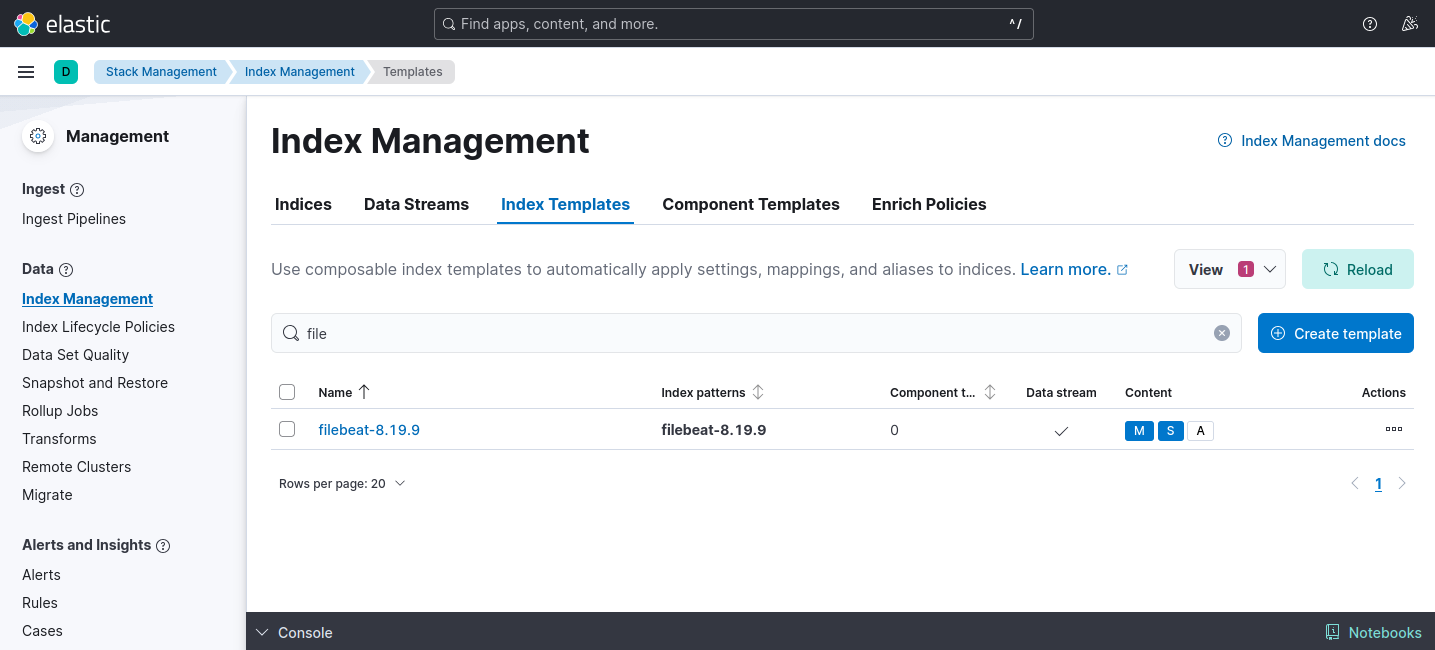
Fill in the fields and hit “Save data view to Kibana”
Finally, open the Discover page. You should see the logs data, nicely parsed in different fields ready to be used to create charts.
Since we are in local, there is not much we can do. However with this setup running in a remote server, you will have quality data to work with, includin real ips.
All files are available directly on github here.
If you found this tutorial helpful, star the repo as a thank you! ⭐