

Pair Nintendo Joy-Cons over Bluetooth and combine them as one controller on Linux
17 Jan 2026
Introduction
In the past 10 years, Linux has made remarkable progress to allow us to play video games without being tied to Windows. Even if I’m really not a gamer anymore, I occasionally enjoy playing on my laptop. But the only controller I have on hand is a pair of Nintendo Joy-Cons from my Switch…
Getting the two Joy-Cons to work together as a single controller on Linux took me some trial and error. To save myself (and hopefully you) the hassle in the future, I have documented the steps below. Let’s get started!
I tested the following steps on Linux Mint 22.1 and 22.3, so it should work fine on Ubuntu and other Debian based operating systems.
Checking requirements
We should first make sure your OS Kernel has the hid_nintendo driver. If you have a Kernel with a version equal or higher to 5.16.0, you should be fine. Newest Kernels have added support for Nintendo Joy-cons and Pro Controllers! Run the command to confirm:
modinfo hid_nintendo
If everything is ok, you should see something like this:
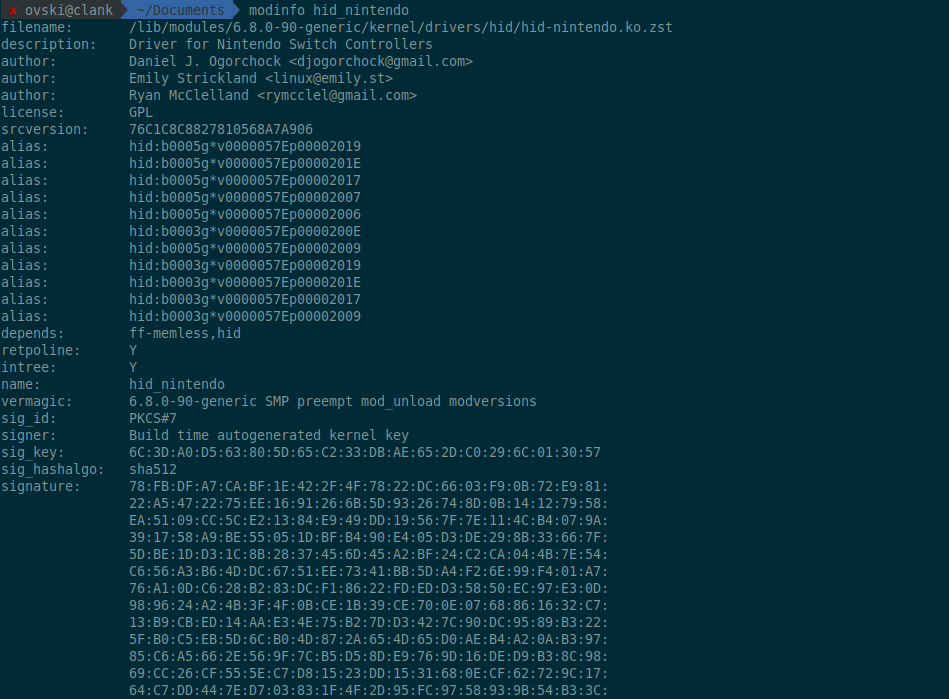
If not, you will need to install the driver yourself. More information at https://github.com/nicman23/dkms-hid-nintendo
Installing joycond to combine the Joy-Cons
To combine the left and right Joy-Cons as a single controller, we need to install the joycond service. All steps can be followed on the github repository directly at https://github.com/DanielOgorchock/joycond.
Open a terminal and run those commands:
sudo apt install cmake libudev-dev libevdev-dev git
git clone https://github.com/DanielOgorchock/joycond
cd joycond
cmake .
sudo make install
sudo systemctl enable --now joycond
We should make sure the joycond service is running. In a terminal, execute:
systemctl status joycond
We want to see something along those lines - make sure you can read active (running):
● joycond.service - joycond
     Loaded: loaded (/usr/lib/systemd/system/joycond.service; enabled; preset: enabled)
     Active: active (running) since Fri 2026-01-16 19:47:45 PST; 13min ago
   Main PID: 978 (joycond)
      Tasks: 1 (limit: 18962)
     Memory: 636.0K (peak: 1.6M)
        CPU: 67ms
     CGroup: /system.slice/joycond.service
             └─978 /usr/bin/joycond

Jan 16 19:47:45 clank systemd[1]: Started joycond.service - joycond.
Jan 16 19:47:45 clank joycond[978]: adding epoll_subscriber: fd=4
Pairing the Joy-Cons
Now let’s talk about the tricky part! I say tricky because the Joy-Cons are not as compliant as we could hope for. Each step described here should be followed one at a time, before jumping to the next one.
-
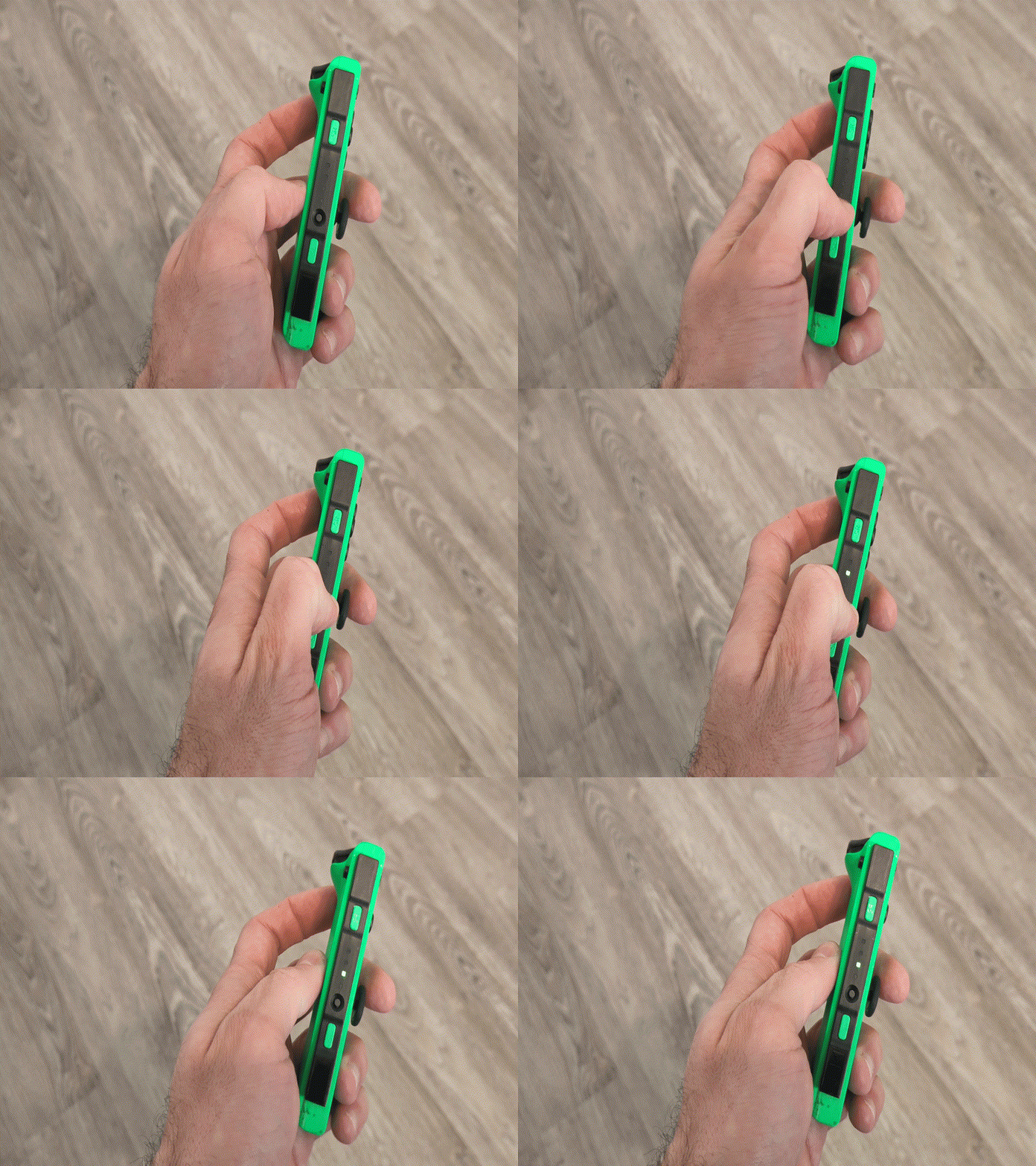
Pick a single Joy-Con - let’s assume the right one - and find the button in the middle of the rails, next to the sync indicators. Press it for a while until lights flashes successively.
- Open the « Bluetooth Devices » settings and click « Search ». You should see a new device named « Joy-Con (R) » appearing.
- Right click on it
- Click “Pair”
- Then click “Trust”
- Wait for a little while and the device should get disconnected (this is happening consistently for me). Now:
- Right click again
- Click “Connect”
- In a terminal, execute
bluetoothctl devices Connected. If you see something like this:
Device 76:L6:88:8B:17:7E Joy-Con (R)
Then you are good to proceed. Repeat the exact same 4 steps for the second Joy-Con. Run the command again and if everything is good, both devices should be listed
Device 76:L6:88:8B:17:7E Joy-Con (R)
Device 54:B7:77:1A:18:6B Joy-Con (L)
Here is a video showing how it looks on my laptop:
Combining the Joy-Cons as one Controller
💡 In my many attempts, I realized the Joy-Cons were consistently combined only when the right Joy-Con was paired first, and the left Joy-Con paired after. It might be the other way around for you, so make sure to try both combinations.
The 2 Joy-Cons are connected. Now we want to make it as a single controller.
- In a terminal run
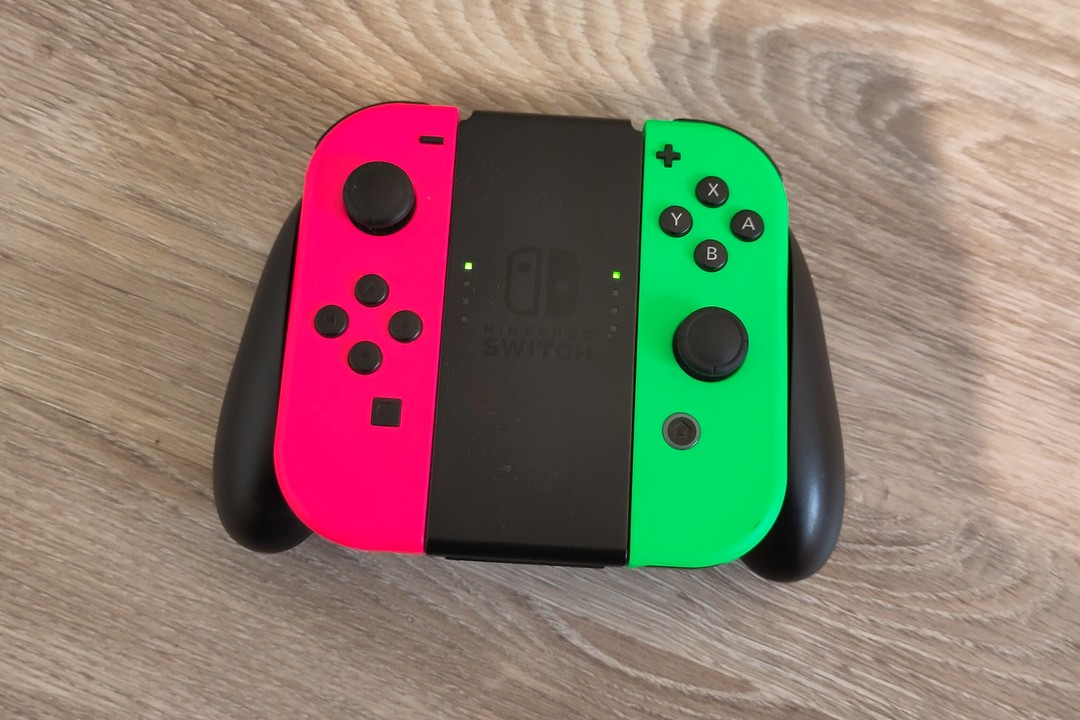
journalctl -u joycond -f - Slide the 2 controllers into the Joy-Con Grip (the controller support we slide the Joy-Cons into), then press together the top L and R buttons for a few seconds, until the lights align and stop moving.
- Check the logs in the terminal
Here is an example of what I see in mine:
Jan 20 14:54:08 clank joycond[1070]: Found Right Joy-Con
Jan 20 14:54:08 clank joycond[1070]: driver_name: Joy-Con (R)
Jan 20 14:54:08 clank joycond[1070]: MAC: 70:F0:88:8B:18:5E
Jan 20 14:54:08 clank joycond[1070]: adding epoll_subscriber: fd=5
Jan 20 14:54:25 clank joycond[1070]: DEVNAME=event16 ACTION=add DEVPATH=/devices/pci0000:00/0000:00:14.0/usb1/1-7/1-7:1.0/bluetooth/hci0/hci0:512/0005:057E:2006.000C/input/input44/event16
Jan 20 14:54:25 clank joycond[1070]: Creating new phys_ctlr for /dev/input/event16
Jan 20 14:54:25 clank joycond[1070]: Found Left Joy-Con
Jan 20 14:54:25 clank joycond[1070]: driver_name: Joy-Con (L)
Jan 20 14:54:25 clank joycond[1070]: MAC: 70:F0:88:8B:64:1C
Jan 20 14:54:26 clank joycond[1070]: adding epoll_subscriber: fd=15
Jan 20 14:54:38 clank joycond[1070]: Waiting controller needs partner
Jan 20 14:54:38 clank joycond[1070]: Found left
Jan 20 14:54:38 clank joycond[1070]: Waiting controller needs partner
Jan 20 14:54:38 clank joycond[1070]: Waiting controller needs partner
Jan 20 14:54:38 clank joycond[1070]: Found left
Jan 20 14:54:38 clank joycond[1070]: Waiting controller needs partner
Jan 20 14:54:38 clank joycond[1070]: Found right
Jan 20 14:54:38 clank joycond[1070]: adding epoll_subscriber: fd=25
We are looking for Found Left Joy-Con followed by Found Right Joy-Con or vice versa, and when both Joy-Cons are combined, Waiting controller needs partner should stop from being logged.
Testing
To confirm we have a working controller, we can install the joystick utility package, then run jstest /dev/input/js0:
sudo apt install joystick
jstest /dev/input/js0
Press some buttons to confirm the keys are being mapped in the logs! Here is another video resuming the last steps:
Time to play, enjoy! 🎮